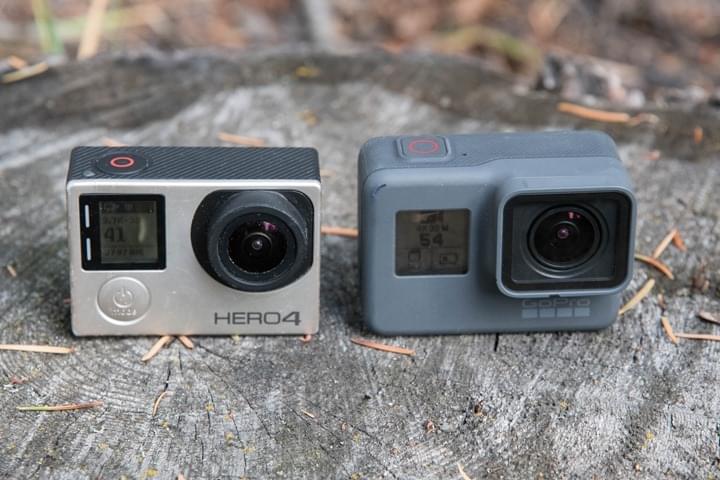
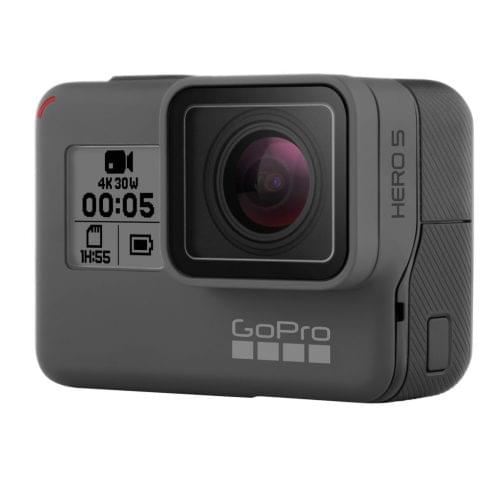
The GoPro Hero5 shares many video and photo specs with the previous generation, but it also brings a handful of new features. While no single addition is a game-changer on its own, together they make a noticeable difference compared to the Hero4 Black. This section highlights the key new features, and the following sections will dive deeper into the camera’s core functions while exploring these updates in more detail.
Fully Waterproof: One of the biggest upgrades is that the GoPro Hero5 Black is now completely waterproof without an extra case, just like the Hero4 Session. It even uses a similar rubberized material on the exterior, giving it that rugged, water-ready feel straight out of the box.
What is of more concern though is the USB-C/HDMI port door. This door pops off for placement into the Karma gimbal/drone, as well as just for charging:
Deals
The port door won’t pop off easily since you have to press a button and slide it to open. The real challenge is keeping track of it after charging or while the cable is connected. GoPro sells replacement doors, though they’re a bit pricey. My plan is to grab an extra and stash it safely in my backpack or suitcase when traveling—because I’m certain I’ll lose it at the worst possible moment, like when I’m trying to capture shots underwater.
While we’re on the topic of doors, there’s also the battery compartment underneath. It houses both the battery and the micro-SD card, keeping your essential components secure.
Touch Display:
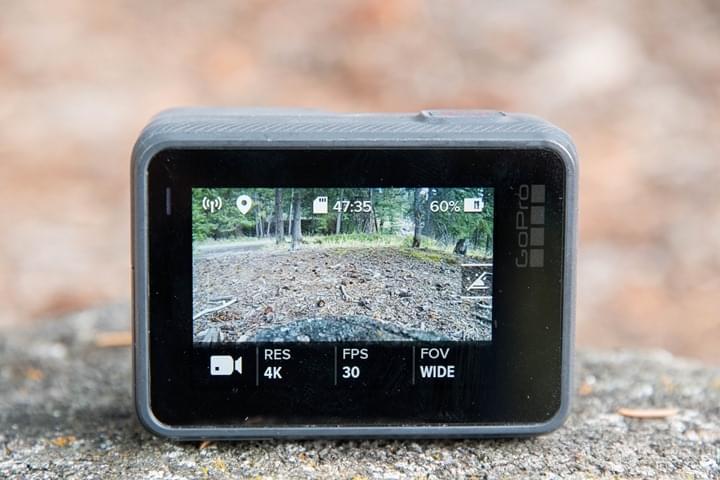
The Hero5 builds on the touch display introduced with the Hero4 Silver. As a reminder, the Hero4 Black didn’t have a display at all, which is partly why I preferred using the Hero4 Silver for everyday shooting over the Black.
That said, the touch display on the Hero5 feels noticeably different from the one on the Hero4 Silver.
The menu system has been completely redesigned to make finding settings more intuitive. Along the bottom, it displays the key details for the current mode—for example, in video mode, you can quickly see the resolution and frame rate.
You can tap the screen to change these settings, and only the frame rates available for the selected resolution will appear. In theory, it looks great, but in practice it can be a bit cumbersome. With so many resolutions packed closely together, it’s easy to miss the one you want on the small display.
On the right side of the display, you can access advanced settings for each mode, including ProTune, Image Stabilization, and Audio Control.

From the top of the display, you can access general settings like WiFi and voice control. On the left, you’ll find the playback section to review your photos and videos. I go over all of this in detail in the video below:
Speaking of a wet display, I found it doesn’t respond well when it gets wet. If your fingers are wet, the touchscreen can become unresponsive and frustrating to use.
As I mentioned earlier, the Hero5 Black’s touch display looks great in theory, but in practice it could use some refinement. Most of the time, the slight lag and tiny on-screen selectors led to several missed attempts when trying to change modes.
Control Your GoPro with Your Voice
Similar to the VIRB Ultra 30, GoPro added Voice Control this year. Just say, “GoPro, Start Recording,” and it will begin filming. The same works for taking photos or switching modes. There’s even a fun trick—say a certain expletive that rhymes with “hit,” and the camera will mark a highlight. It’s a handy, hands-free feature that’s surprisingly practical.
You can toggle this feature on or off, and it supports seven languages. If you have the Remo accessory remote, it can also accept voice commands when the camera is out of earshot.
That said, it’s not flawless. I found that voice control works well when standing still, but performance drops once you start moving. Around 10 MPH (15 KPH), commands often stop registering, no matter which way the camera is facing. By comparison, Garmin’s system keeps working at higher speeds as long as the camera is pointed at you.
GoPro offers more voice commands than Garmin, and leaked manuals from August even hinted that it might one day learn custom commands (which hasn’t happened yet—but that would be really cool). In practice, though, Garmin performs better once you’re moving, with fewer failed commands and more consistent responsiveness.
Built-In GPS and Sensors
The Hero5 Black does include GPS, but don’t expect it to track your activities. Its GPS mainly geotags photos and videos—basically like Instagram or Facebook, letting you know where a shot was taken. It doesn’t record GPS tracks while biking, skiing, or surfing, and it won’t show your speed on videos. In short, its use is mostly limited to labeling your content with a location, like “Taken in NYC.”
This is definitely a letdown for sports fans who wanted to overlay metrics like speed or distance directly onto their videos within the GoPro app. Even though GoPro acquired Dashware, a top app for adding these data overlays, there’s currently no native support. For now, the GPS only adds a simple location tag, with the icon appearing at the top left of the display.

Electronic Image Stabilization, RAW Photos, Advanced Audio Tracks: I’m grouping these features together—not because they belong in the same category, but because they’re worth highlighting before we go deeper. These are some of the biggest differences between the Hero5 Black and Hero5 Session. While the Session does include stabilization, it lacks the new RAW photo mode and Advanced Audio Track capabilities found on the Black.
On that note, let’s dive into the audio and video modes.
Video & Audio details
Ah, video time! There’s no better place to start exploring the Hero5’s features than its video modes. In many ways, it’s similar to the Hero4 Black, offering 4K at 30 FPS and 720p at 240 FPS—the two formats people talk about most. And yes, the 4K footage looks fantastic.
So what’s new and worth noting? Let’s start with video stabilization. The Hero5 uses electronic image stabilization (EIS), which works by capturing a slightly larger frame—like 4K—and then smoothing the motion by cropping the edges, giving you a stabilized clip at up to 2.7K. Garmin does something similar on the VIRB Ultra 30, though it tops out at 1440p. Sony’s X3000R, on the other hand, uses optical stabilization, which doesn’t crop the image at all.
When dealing with light bumps in the road or just hand-holding the camera, image stabilization can make a big difference. The trade-off is a slight reduction in resolution, but if your final video is 1080p, it’s usually worth it. It works best when much of the scene stays in the same direction. On a helmet mount, where your view constantly shifts, it can get a little unpredictable.
One of the coolest features is the ability to record separate audio files from each microphone. If you enable ProTune, a new option appears that lets you do this, with three different levels to choose from.
Here are a few quick tests I ran to check straightforward recording times:
1080p 30FPS (Wide): 2 hours 7 minutes 41 seconds without WiFi/GPS, and 1 hour 50 minutes 52 seconds with WiFi/GPS enabled.
2.7K 30FPS (Wide): 1 hour 45 minutes 5 seconds with WiFi enabled.
4K 30FPS (Wide): 1 hour 31 minutes 10 seconds with WiFi enabled.
All of these tests were done at room temperature. Naturally, factors like extreme heat or cold, different shooting modes, and higher frame rates will affect battery life. Still, these numbers give you a solid baseline to work from.
Photo mode:
While the Hero5 Black doesn’t improve on resolution compared to the Hero4 Black, it does add several useful photo-focused features. To enter photo mode, simply tap the mode button until you see “Photos,” or just use voice commands to snap a picture hands-free.
The Hero5 Black offers different photo modes, including burst shots, photo timelapses, and night photos. Keep in mind that the photo timelapse is separate from the video timelapse—it creates a lot of individual image files, while the video timelapse produces just a single video.
In photo mode, you can adjust both the resolution and perspective. The camera shoots at 12MP, and perspective options include Wide, Linear, Medium, and Narrow. The Linear mode is the standout here, designed to minimize the fisheye distortion common on action cams. To see the differences in action, check out this sample gallery of the various modes:
Burst mode lets you capture fast-moving action at up to 30 frames per second. You can also set it to spread those frames over several seconds for a different effect.
Hero5 Black vs Hero5 Session:
If you’re trying to decide between the Hero5 Black and the Hero5 Session, both are solid options. Here are some points to consider (later, I’ll compare the Hero5 Black with the Garmin VIRB Ultra 30). I’m specifically referring to the $299 Hero5 Session—not the cheaper $199 Hero Session, which lacks many features. The most obvious difference is the missing “5” in the Hero Session name.
At a glance, here’s what the Hero5 Black offers that the Hero5 Session doesn’t:
- 12MP instead of 10MP pictures on Session
- GPS for location stamping
- Inability to swap out battery (it’s not removable)
- RAW photo option
- WDR (Wide Dynamic Range) photo option
- Higher slow-mo specs (240fps on Black vs 120fps on Session)
- A handful less frame-rate options
- Touch display on the back (no display at all)
- Three mics vs two mics on Hero5 Session
- Ability to record individual audio streams
- HDMI port for direct viewing/connection options
That said, the Hero5 Session still comes with all of these core features:
- – Voice control
- – Electronic Image Stabilization
- – WiFi Uploads to GoPro Plus
- – 4K Video options
- – Karma Drone and Karma Grip Compatibility ($29 accessory required)
- – Waterproofing to 10m/33ft
- – USB-C
Those are the main differences. Both cameras are excellent, so you really can’t go wrong with either. Personally, I prefer the Hero5 Black because I like being able to see and frame my shots. With the Hero5 Session, it’s more of a “shoot and hope you got it” approach. Sure, you could use your phone to check shots, but most of us probably won’t.